Three Years In, Most Malaysian GA4 Setups Are Still Broken
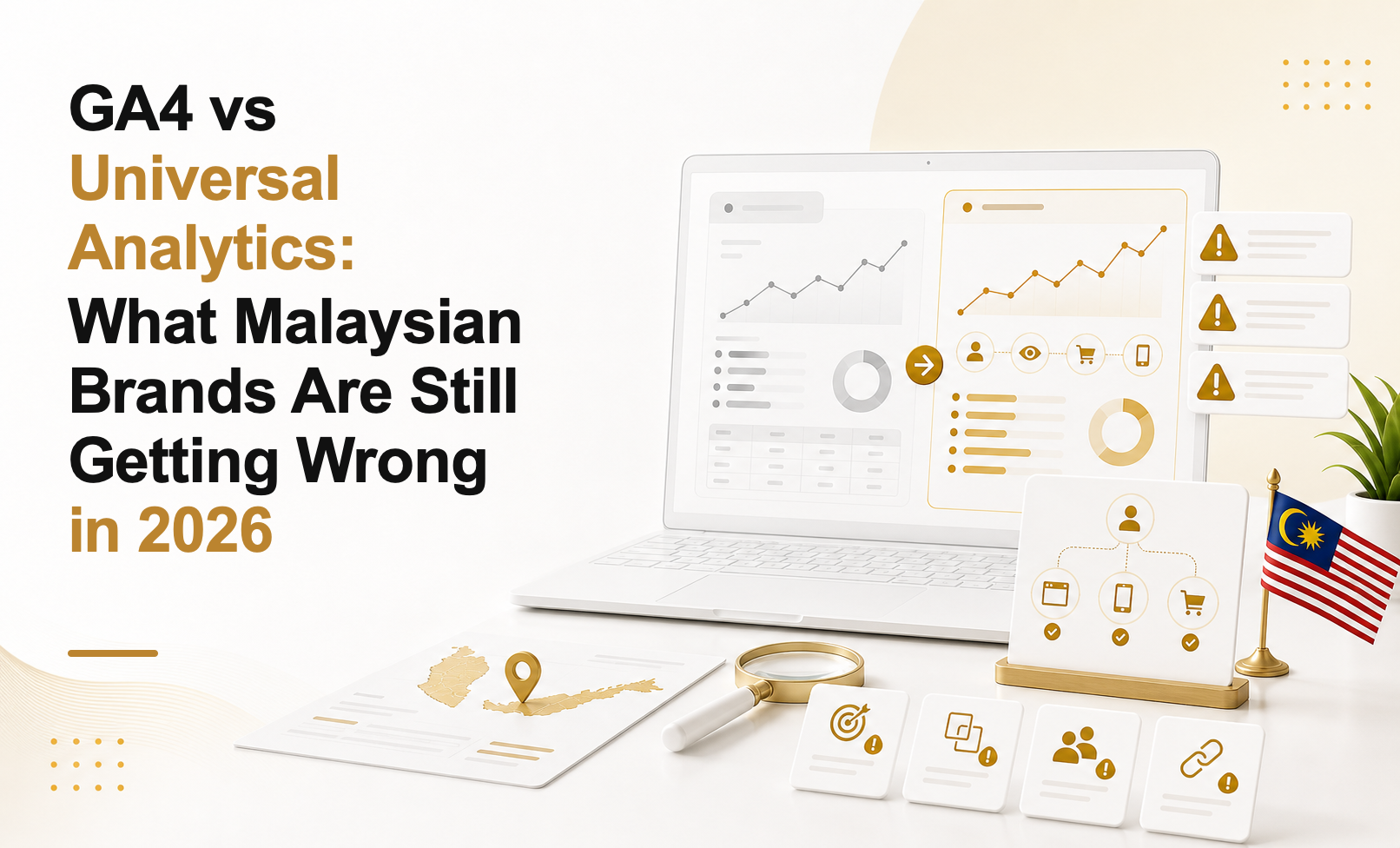
Google retired Universal Analytics in July 2023 and forced a complete migration to GA4. For most marketing teams in Malaysia, this arrived as a compliance event — something that needed to happen urgently, under deadline pressure, alongside everything else on the roadmap. Agencies scrambled. In-house teams followed online guides. The migration got done.
The problem is that "done" and "correctly configured" are not the same thing in GA4. Universal Analytics had a relatively forgiving setup process — a tracking code, a few goals, and you had a functioning account. GA4 is architecturally different. It is built on an event-based data model, requires deliberate configuration of conversion events, and has a set of critical settings that are not configured by default. An account that was "migrated" by dropping the GA4 tag onto a site and pressing publish is, in most cases, collecting a fraction of the data it should be — and in some cases, actively misleading the teams who rely on it.
The insidious part is that a misconfigured GA4 account does not throw errors. It does not show red warnings in the dashboard. It shows you numbers — sessions, users, traffic sources — and those numbers look plausible enough that most teams assume everything is working. The gaps only become visible when you audit systematically, and by then, weeks or months of flawed data have already shaped budget decisions.
In our experience auditing GA4 accounts across Malaysian enterprises, the issues cluster into five recurring patterns. They are not obscure edge cases — they are the predictable result of a migration approach that prioritised speed over configuration depth.
The Five Most Common GA4 Mistakes We See in Malaysia
Mistake 1: No conversion events configured. This is the most fundamental and the most common. Out of the box, GA4 tracks page views, sessions, and some engagement signals. It does not automatically track what matters to your business. If you have not gone into Admin, opened the Events report, and explicitly marked specific events as conversions — form submissions, phone call clicks, purchase completions, quote requests — then GA4 is collecting behavioural data but completely blind to business outcomes.
When we see this in an account, what it usually means in practice is that the marketing team is optimising Google Ads campaigns toward "no conversion data" or toward a proxy conversion (like page views) that has no meaningful relationship to commercial intent. Smart Bidding strategies require conversion signals to optimise — without them, they are essentially running on random noise. The consequences appear as poor campaign performance that gets attributed to the wrong causes: wrong audience, wrong creative, wrong bid strategy — when the actual problem is that the campaign has never had accurate conversion feedback to learn from.
Mistake 2: Duplicate tracking from both UA and GA4. When GA4 launched, the recommended approach was to run it alongside the existing Universal Analytics property to build up historical data before the hard cutover. Many Malaysian teams did exactly this. The error is that a significant number of those teams never removed the old UA code — or added GA4 via Google Tag Manager while the UA snippet was still hardcoded in the site template.
The result is double tracking: both tags fire on every page load, sessions are counted twice, and any report that references session volume or user counts is fundamentally unreliable. With UA now officially dead, there is no reason to be running it. If your GA4 account was set up this way, confirm the UA property has been fully decommissioned and that no UA tags remain active in GTM or site code.
Mistake 3: Internal traffic not filtered. Every visit to your site from your own team — the marketing manager checking a landing page, the developer testing a form, the account manager logging in to pull a report — gets recorded as a user session in GA4 unless you have explicitly excluded internal traffic. For most businesses, this inflates engagement metrics, distorts bounce rate data, and pollutes conversion funnels with internal actions that have nothing to do with customer behaviour.
GA4 handles internal traffic filtering differently from Universal Analytics. You need to create a Data Filter in Admin settings, define your internal IP ranges, and set the filter to active. If you are working with an agency, their IP addresses should be excluded as well — agency teams browsing client sites as part of reporting and QA work can generate a surprisingly large volume of sessions in smaller-scale accounts.
Mistake 4: Cross-domain tracking not configured. This affects any brand that runs traffic across more than one domain — a main marketing site that hands off to a booking platform, an e-commerce cart on a different subdomain or domain, or a landing page hosted on a separate domain from the main site. Without cross-domain configuration, GA4 treats the handoff between domains as a new session originating from a referral — meaning users who start on your main site and complete a purchase on your booking platform appear in your data as two separate users with two separate sessions, and the conversion gets attributed to a direct or referral source rather than to the original campaign that drove the visit.
The fix is straightforward — add all relevant domains to the cross-domain measurement settings in your GA4 data stream configuration — but it requires knowing the problem exists first. Many teams discover it only when they notice that referral traffic from their own domain is appearing anomalously in acquisition reports.
Mistake 5: Using sessions as the primary success metric. This is less a technical misconfiguration than a conceptual one, but its impact on decision quality is just as significant. Universal Analytics was built around the session — everything was defined relative to how many sessions occurred, how long they lasted, and what happened within them. GA4 is built around events. Sessions in GA4 are a derived metric, not the foundational unit of measurement.
Teams who migrated to GA4 but continued to report on sessions are using a tool designed around event-based analysis in a way that discards most of its analytical value. Engagement rate — the percentage of sessions that included meaningful user activity — is a more useful engagement signal than bounce rate. Event-level analysis of conversion paths is more informative than time-on-site by channel. If your weekly reporting format still looks like a UA report with a GA4 logo on it, the migration has been cosmetic rather than substantive.
A GA4 account that was "set up" is not the same as a GA4 account that is working. The former takes an afternoon. The latter requires deliberate configuration of conversions, filters, cross-domain tracking, and reporting frameworks — none of which happen automatically.
What a Properly Configured GA4 Account Looks Like
A correctly configured GA4 account is not complicated — it is just specific. The following is the configuration baseline we verify on every client account before we consider the analytics foundation trustworthy enough to build campaign decisions on.
Conversion events. At minimum, a properly configured account should have the following events marked as conversions: generate_lead or form_submit for lead generation sites; purchase for e-commerce; call_click if phone calls are a meaningful lead source; scroll at 80 percent depth as a soft engagement signal; and video_complete if video content is part of the conversion funnel. Each conversion event should have a meaningful value assigned where possible — even a rough estimated lead value is more useful to Smart Bidding than a binary conversion with no value.
Internal traffic filter. Admin > Data Streams > [Your Stream] > Configure tag settings > Define internal traffic. Add IP ranges for your office, any remote working IP addresses used by your team, and your agency's IP ranges. Return to Admin > Data Filters to confirm the filter is set to Active (not Testing).
Cross-domain measurement. If your brand operates across multiple domains, Admin > Data Streams > [Your Stream] > Configure tag settings > Configure your domains. Add every domain that should be treated as part of the same user journey. Verify by checking Acquisition reports for anomalous self-referral traffic.
User ID tracking. If your site has a login function — e-commerce accounts, member portals, SaaS products — implementing User ID tracking is one of the highest-value configuration steps available. It allows GA4 to stitch together a single user's journey across multiple devices and sessions, producing significantly more accurate user counts and cross-device conversion paths. Implementation requires a small development change to pass a hashed user identifier to GA4, but the analytical gain is substantial.
Enhanced measurement review. Enhanced measurement in GA4 automatically tracks scroll depth, outbound clicks, site search, file downloads, form interactions, and video engagement. This sounds ideal — and in many cases it is — but it requires deliberate review rather than blind activation. Some enhanced measurement events generate noise rather than signal in specific site architectures. Review each enhanced measurement toggle in your data stream settings and confirm that what is being tracked is actually useful for your reporting needs.
Google Ads link and conversion import. Link GA4 to Google Ads via Admin > Google Ads Links. Then, in Google Ads, import GA4 conversion events as conversion actions. This step is critical for Smart Bidding — tROAS and tCPA strategies in Google Ads perform significantly better when they are optimising toward imported GA4 conversion data rather than Google Ads-native conversion tracking alone, because GA4 provides a richer signal that includes cross-session and cross-device attribution.
For a deeper dive into analytics configuration and the reporting frameworks we build for Malaysian enterprise clients, talk to our team.
The 30-Minute GA4 Audit
The following six-step audit can be completed in a single sitting. It will not identify every possible configuration gap in your account, but it will surface the issues that have the greatest impact on data reliability and campaign performance. Run it yourself today — no tools or external access required beyond your own GA4 Admin.
Step 1 — Data Streams (5 minutes). Navigate to Admin > Data Streams. Confirm there is exactly one active web data stream for your primary domain. If you see multiple streams, investigate whether they are generating duplicate data. Within the stream, open the settings and review the Enhanced Measurement toggle — confirm each sub-toggle reflects a deliberate decision, not a default left in place.
Step 2 — Conversion Events (5 minutes). Navigate to Admin > Events. Sort by the Marked as Conversion column. Count how many events are marked as conversions. If the answer is zero, or if the only conversions are generic engagement events (session_start, first_visit), your account has no meaningful conversion tracking. Verify that at least three to five events representing actual business outcomes are marked as conversions.
Step 3 — Data Filters (5 minutes). Navigate to Admin > Data Filters. Confirm at least one filter exists for internal traffic and that its status is Active, not Testing. A filter in Testing mode shows filtered data in a separate dimension but does not remove it from your standard reports — the default view still includes your own team's sessions.
Step 4 — Realtime Verification (5 minutes). Open a private/incognito browser window, visit your own website, and perform a conversion action (submit a test form if one is available, or navigate to a conversion-relevant page). In GA4, open Reports > Realtime. Confirm your session appears. Then confirm that when you navigate to Reports > Realtime with your normal (non-incognito) browser and visit the site from your office IP, that session does not appear in Realtime reports — confirming the internal traffic filter is functioning correctly.
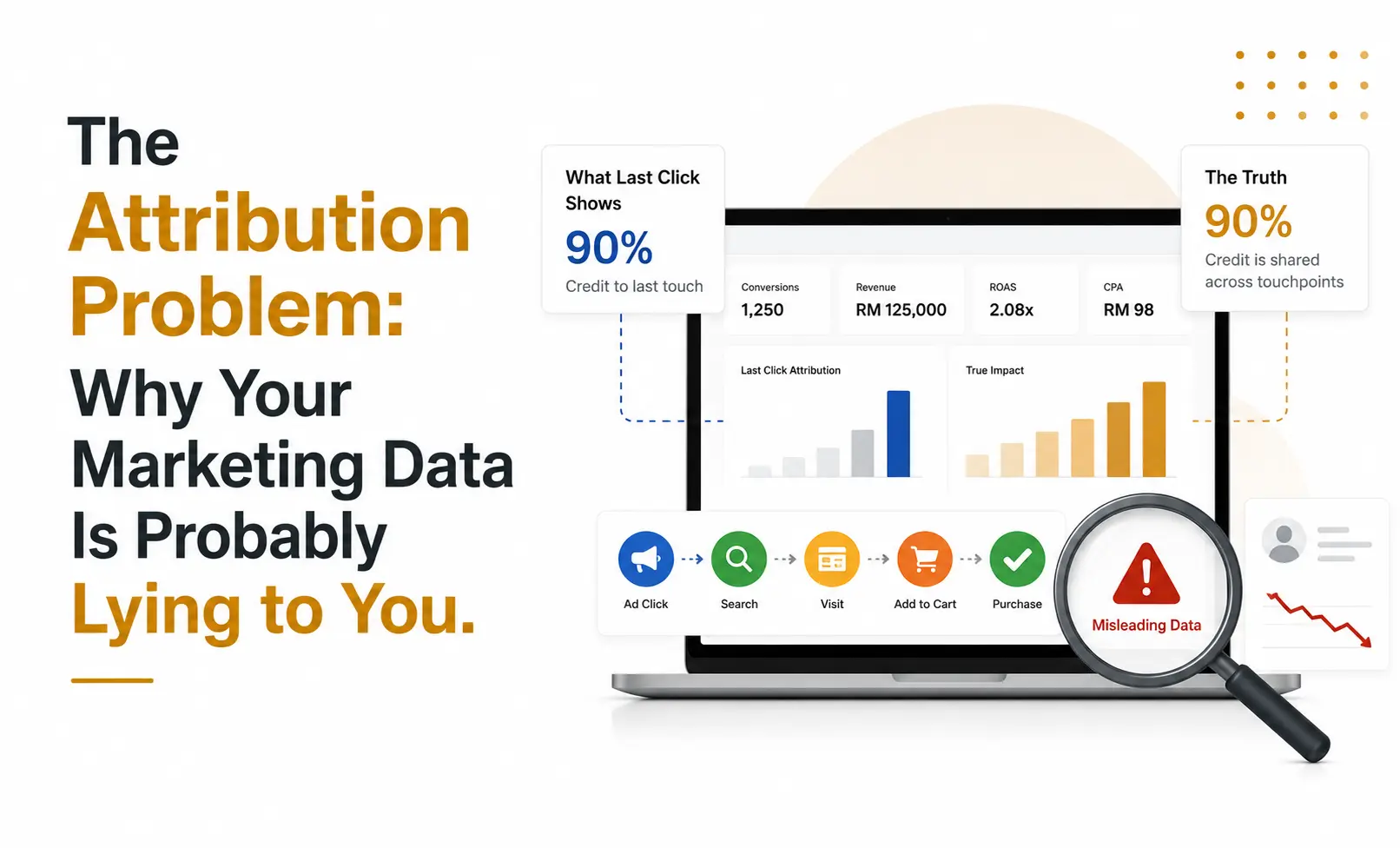
Step 5 — Attribution Model (5 minutes). Navigate to Admin > Attribution Settings. Confirm the Attribution Model is set to Data-Driven, not Last Click. Last-click attribution systematically over-credits the final touchpoint in a conversion path (typically branded search or direct) and under-credits the upper-funnel channels that drove awareness. Data-Driven attribution uses machine learning to distribute credit across the full conversion path — it produces more accurate channel contribution data and, when imported into Google Ads, improves Smart Bidding performance on upper-funnel campaigns.
Step 6 — (Not Set) Check (5 minutes). Navigate to Reports > Acquisition > Traffic Acquisition. Look at the Session Default Channel Group or Session Source/Medium breakdown. Calculate what percentage of sessions are attributed to (not set). If (not set) exceeds 10 percent of total sessions, you have tracking gaps — either missing UTM parameters on paid campaigns, JavaScript errors preventing the GA4 tag from firing on certain pages, or cross-domain issues causing sessions to arrive without attribution data. Any figure above 10 percent warrants a deeper investigation.
GA4 Reporting That Actually Helps Marketing Decisions
Once your GA4 account is correctly configured, the question becomes what to actually look at. Most Malaysian marketing teams we engage with are looking at the wrong reports — not because they lack analytical capability, but because the GA4 interface defaults to surface-level metrics that feel familiar but do not drive better decisions.
Sessions, users, and page views are not useless — but they are not the metrics that tell you whether your marketing is working. They tell you how much traffic you received. They do not tell you what that traffic did, where it came from originally, or whether it converted into anything commercially meaningful.
The reports that actually inform budget and strategy decisions are: Conversion paths (under Advertising), which show the sequence of touchpoints that precede conversions and reveal which channels are driving assisted conversions versus last-click credit; Attribution comparison, which lets you see how different attribution models shift credit across channels and helps identify channels that are under-valued by last-click; User Acquisition (not Traffic Acquisition), which shows the channel that drove a user's first visit — critical for understanding where new customers are actually coming from, as opposed to what channel drove their most recent session; and Engagement rate by landing page, which shows which entry points are driving meaningful engagement versus high-exit sessions, informing both CRO priorities and SEO content quality assessments.
For enterprise brands managing multiple campaigns and channels, a Looker Studio (formerly Data Studio) dashboard connected to GA4 is a more effective reporting environment than GA4's native interface. A well-built dashboard brings together channel performance versus targets, landing page conversion rates, new versus returning customer ratios, and Google Ads campaign ROAS from imported GA4 conversion data — all in a single view that is accessible to stakeholders who do not have GA4 admin access.
For information on how we build analytics reporting frameworks and connect them to campaign decision-making, talk to our team.
Where to Start if Your GA4 Is Broken
The temptation when you discover significant configuration gaps in a GA4 account is to consider starting fresh — creating a new property and building it correctly from scratch. In most cases, this is the wrong decision. A new property loses all historical data, resets the machine learning models that power Smart Bidding and audience signals, and restarts the data accumulation required for reliable reporting. Unless the existing property has fundamental structural problems (wrong account hierarchy, wrong data stream configuration for the domain), repair is almost always preferable to replacement.
The correct sequencing for fixing a broken GA4 account follows the order of dependency: conversion events first, because every other analytical and optimisation function depends on knowing what a conversion is; internal traffic filters second, because without them your engagement data is contaminated and your conversion rates are understated; cross-domain tracking third, because broken cross-domain configuration fragments conversion paths and misattributes revenue; enhanced measurement review fourth, to ensure the event-level data being collected reflects deliberate choices rather than defaults; and Google Ads link and conversion import last, once the conversion data flowing into GA4 is trustworthy enough to be used as a bidding signal.
Document every gap you find during the audit with a priority classification: critical (directly affecting conversion data or causing significant data inflation), important (affecting reporting accuracy or campaign optimisation), or nice-to-have (incremental improvements to analytical completeness). Resolve critical items before the next reporting period. Schedule important items with your development team within the next sprint cycle. Review nice-to-have items quarterly.
The final point is worth stating directly: GA4 is not a set-and-forget tool. The configuration that is correct today may need adjustment as your site architecture changes, as you add new conversion paths, or as Google updates the platform. Build a GA4 audit into your quarterly analytics review cycle — the 30-minute process above is fast enough that there is no legitimate reason to skip it.